Customer: make a P2P request and use the official chat
Create the correct request, wait for an authorised Manager, confirm final terms in chat, and dispute a completed request when necessary.
Know these words first
- P2P
- A request handled by an authorised StadiumB Manager instead of an automatic gateway.
- Claimed
- A Manager accepted the request and can continue its conversation.
- Dispute
- A formal review request for a completed P2P transaction.
See where everything is
These screens use demonstration information—never a real user’s balance, payment, or private conversation. Numbered markers match the notes below each image.
Create one clear P2P request
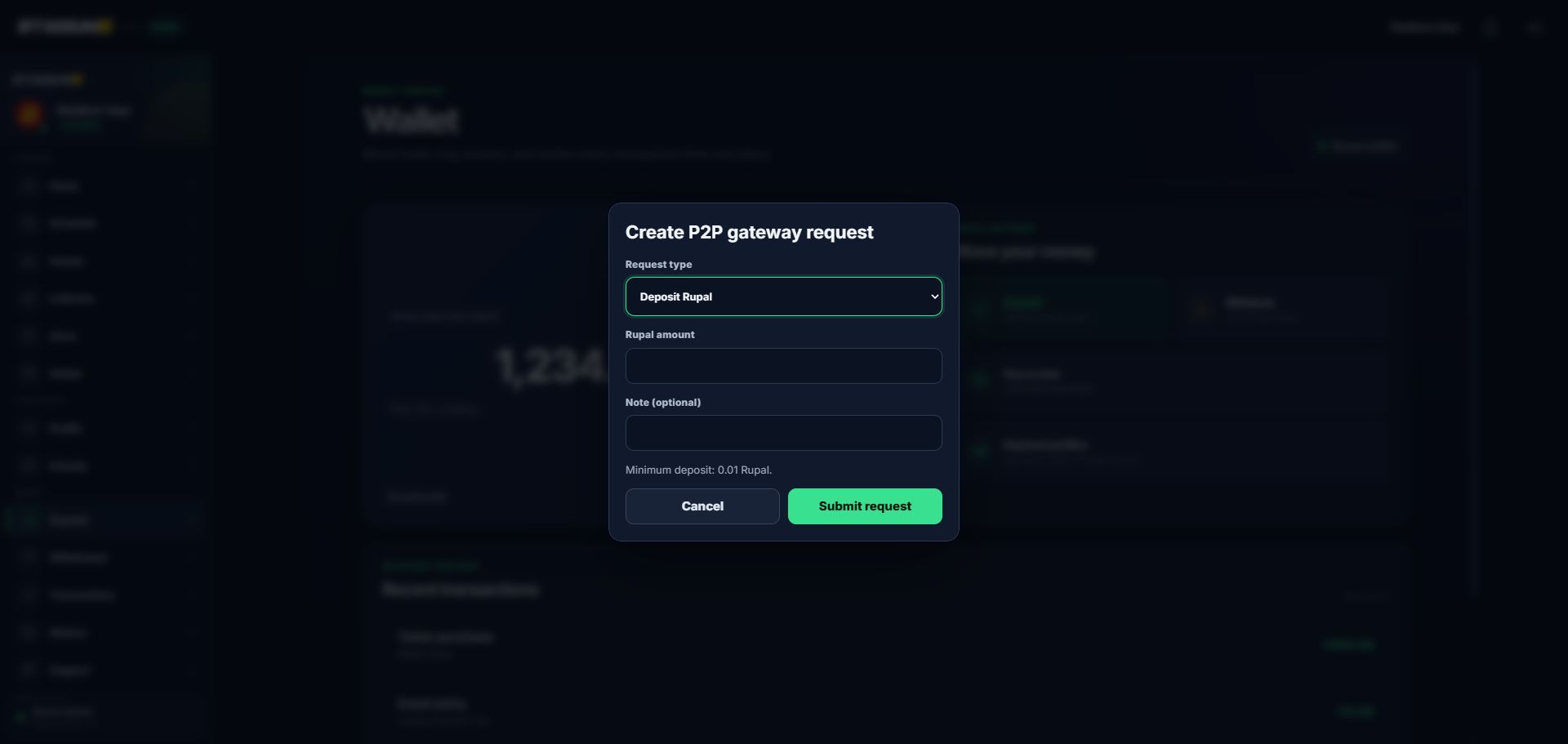
Choose the request type first. The amount field means Rupal for a balance request; a Token request uses a streaming duration.
- 1Deposit, withdrawal, or Token request type
- 2Rupal amount
- 3Optional useful note
- 4Minimum or availability information
- 5Submit once
Use the official request conversation
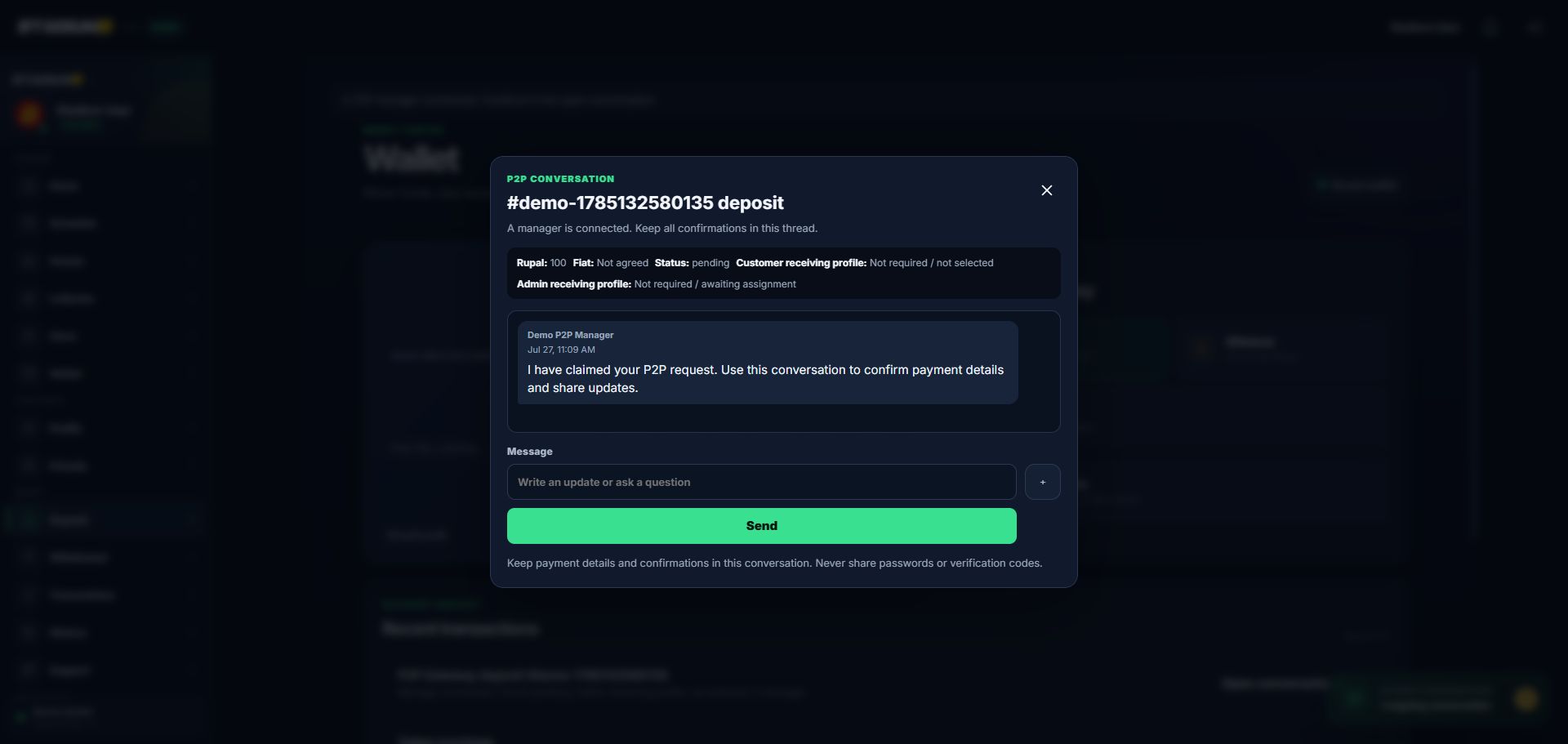
This screenshot shows the waiting stage. Messaging stays disabled until a Manager claims the request. Do not pay before the official terms and receiving profile appear.
- 1Request reference and type
- 2Rupal, fiat, and status
- 3Official receiving-profile status
- 4Conversation and queue message
- 5Never share passwords or codes
Step-by-step
Choose the correct request
Open Deposit, Withdrawal, Store, or the available P2P entry. Deposit or balance adds Rupal after approval; withdrawal removes Rupal for payout; Token creates streaming time.
- Read any estimated fee or availability message.
- Submit only one request for the same need.
Wait for a Manager
The request first searches for an available Manager. When claimed, the official conversation becomes active. Use the payment conversation dock to reopen it.
- Waiting is not completed.
- Do not send money before an authorised Manager and official details appear.
Agree the final terms in chat
Confirm the fiat amount, currency, receiving or payout details, and requested action. Keep messages and proof inside the request conversation.
- Check that the Manager repeats the same terms.
- Never share your password, one-time code, or recovery code.
Verify completion
After approval or rejection, read the final request status and check Wallet, Transactions, Token history, or payout details for the matching record.
- Keep the request reference.
- Do not rely only on a chat message.
Raise a dispute if needed
If a completed request does not match the agreed terms, use its dispute option. State what was agreed, what happened, and the amount, then attach relevant proof.
- Do not open duplicate disputes.
- Keep the explanation factual and tied to the official conversation.
Check that it worked
- Only one request exists for the same need.
- The request reference, type, Rupal or Token amount, and status are visible.
- Fiat amount, currency, and payment details were confirmed in the official conversation.
- Wallet, Token history, or payout record matches the completed request.
If something does not look right
The request says “Finding an available Manager.”
Wait. It is queued, not failed and not completed. Messaging may remain disabled until the request is claimed.
The Manager gives different terms later.
Do not pay. Ask for one final amount, currency, and receiving profile inside the same request.
A completed result does not match the chat.
Use the request dispute option and attach only the relevant proof from the official conversation.