Start here: use StadiumB on Web, Android, or Windows
Sign in, find the main menu, understand Home, and safely sign out on any supported device.
Know these words first
- Rupal
- The money-like balance used inside StadiumB. It is not a streaming Token.
- Token
- Time-limited access to paid live streams.
- Menu
- The list of pages such as Home, Schedule, Wallet, Profile, and Support.
See where everything is
These screens use demonstration information—never a real user’s balance, payment, or private conversation. Numbered markers match the notes below each image.
Customer Home on StadiumB Web
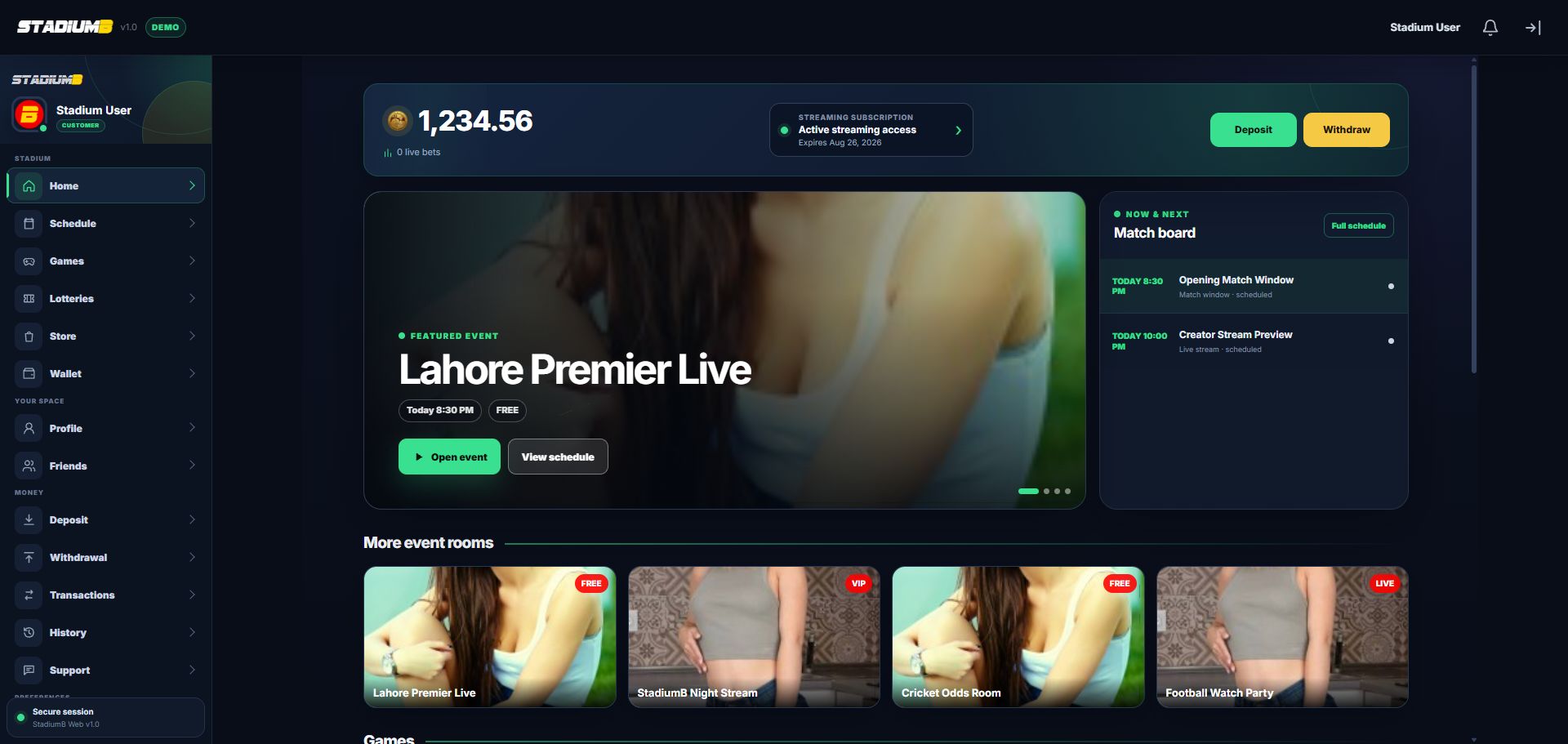
The same account information is used across Web, Android, and Windows. The layout changes with screen size, but names such as Home, Schedule, Wallet, and Support stay familiar.
- 1Main menu and available pages
- 2Current Rupal balance
- 3Streaming access and expiry
- 4Featured event and Open event button
- 5Full event schedule
StadiumB Windows sign-in

On the Windows app, enter your own username and password, then choose Login. “Continue in desktop preview” is a development-only button and is not used for a real account.
- 1Username
- 2Password
- 3Password recovery
- 4Sign in
- 5Create a Customer account
Step-by-step
Open the correct app
Open the StadiumB app supplied by StadiumB. Phone and computer screens may be arranged differently, but the page names and account information are the same.
- Check that the app or page shows the StadiumB name before entering a password.
- Do not sign in through a link sent by an unknown person.
Sign in
Enter your username and password, then choose Login. If this is a new device, complete the verification shown on screen yourself.
- Use Register only when you need a new Customer account and registration is available.
- Use Forgot Password if you started an account recovery.
- Never tell anyone your one-time code or recovery code.
Read the Home screen
Home shows the current Rupal balance, streaming status, live and upcoming events, games, lotteries, and news. A section may be hidden when it is not included in your permissions.
- Select an event card to open its room.
- Choose Full schedule to see what starts later.
- Select the subscription card to check how much streaming time remains.
Open the main menu
On Web and Android, choose the menu button near the top-left corner. On Windows, use the navigation area in the main window. Choose a page name to open it.
- Customers normally see the Stadium, Your space, Money, and Preferences pages.
- Managers and Distributors also see Operations when their account is active.
Sign out when finished
Choose Logout, especially on a shared phone or computer. Closing a browser tab is not always the same as signing out.
- Do not save your password on a public device.
- If a device is lost, use Privacy and security on another device or contact Support.
Check that it worked
- Your name and role appear at the top or inside the account menu.
- Home loads without asking you to enter your password again.
- You can open only the pages allowed for your account.
- After Logout, protected account pages are no longer available.
If something does not look right
The menu has fewer pages than this screenshot.
That is normally a permission difference. Customers, Managers, and Distributors do not receive the same menu.
A new device asks for verification.
Complete the displayed email code, Find-Me, or recovery-code check yourself. Never send that proof to another person.
Login keeps returning to the sign-in screen.
Check the username carefully, reset the password if needed, and send Support the app name and exact error—not your password.