Customer: find live events and buy streaming time
Use Home and Schedule, choose Full, Half, or Quarter Token time, and check the exact expiry before opening a paid stream.
Know these words first
- Schedule
- The live and upcoming event list. Times follow your device timezone.
- Full, Half, Quarter
- Different lengths of the same streaming access, not different event packages.
- Expiry
- The exact date and time when paid streaming access ends.
See where everything is
These screens use demonstration information—never a real user’s balance, payment, or private conversation. Numbered markers match the notes below each image.
Find access status and the correct event
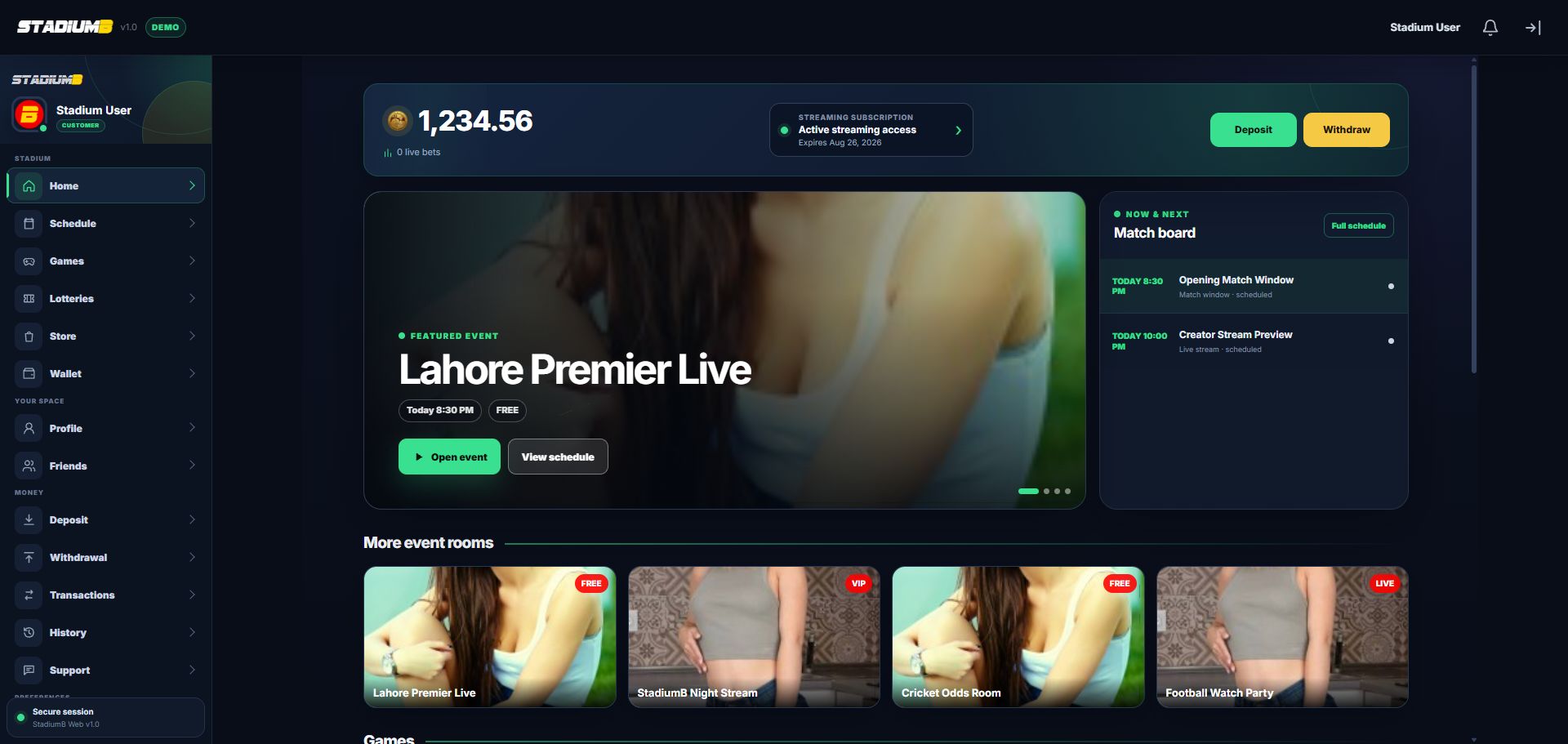
Check the subscription card first, then check whether the event is live, scheduled, free, or paid.
- 1Active access and exact expiry
- 2Deposit or Withdraw are wallet actions
- 3Event access label such as FREE or VIP
- 4Open the event room
- 5Check the scheduled start time
Choose streaming duration in the Store
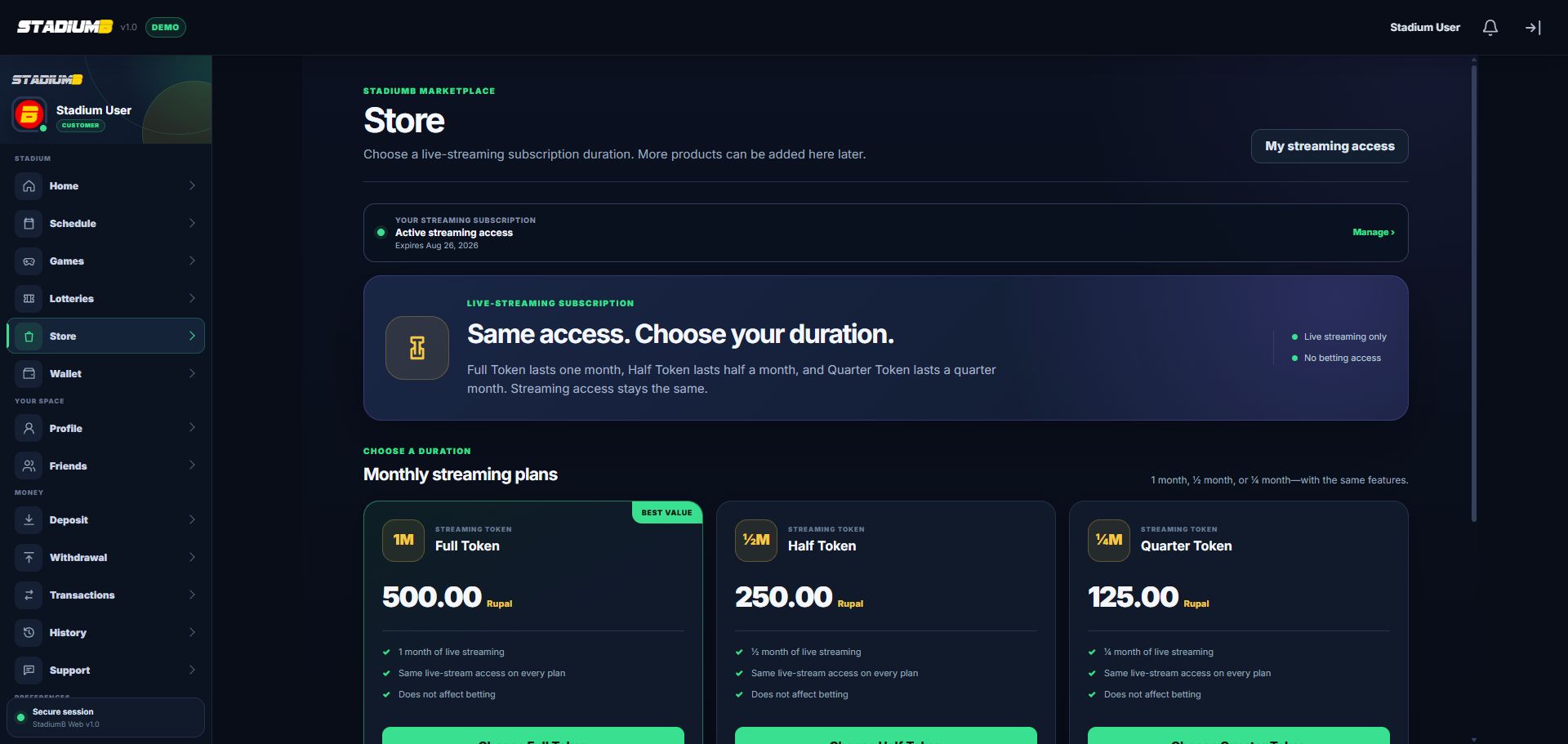
All three plans unlock the same paid streams. Only duration and price change. Read the final Rupal price before choosing a plan.
- 1Current streaming status
- 2Full Token duration and price
- 3Half Token duration and price
- 4Quarter Token duration and price
- 5Streaming history
Step-by-step
Check existing access
On Home, find Streaming subscription. Active means paid streams can open until the displayed expiry. Select the card or My streaming access to see active and previous Tokens.
- Do not buy again until you have checked the current expiry.
- New time normally continues after unused active time.
Choose a Token duration
Open Menu, then Store. Compare Full, Half, and Quarter duration and the displayed Rupal price. Every option provides the same paid-stream access for a different length of time.
- A Token does not add Rupal or betting access.
- Choose the duration you need, not the largest option automatically.
Confirm the purchase once
Read the duration and Rupal price, confirm once, and wait. A successful purchase appears in streaming history and the Rupal debit appears in Transactions.
- Do not repeatedly press the button while processing.
- If buying through an authorised person, agree the duration, actual fiat amount, and currency first.
Find and open an event
Use Home for highlighted events or Menu, then Schedule for the full timeline. Select the event. Free events open normally; paid events check active Token time.
- Live now means the event has started.
- Scheduled means it begins later.
- Changed or Postponed means the organiser moved the time.
Fix a stream that will not open
Refresh once, check the internet connection, confirm the event is live, and check Token expiry. Try the latest StadiumB app before buying more time.
- Some players open in a separate secure window.
- Send Support the event name, time, app type, and visible error. Never send your password.
Check that it worked
- The Store and Home show the expected active-until date.
- Transactions contains one matching Rupal debit, not repeated debits.
- The event status says live before you troubleshoot the player.
- A paid event opens while the Token is active.
If something does not look right
The purchase succeeded but the subscription card looks old.
Refresh once, then open My streaming access and Transactions. Do not purchase again while the first record is present.
The event will not open.
Check live status, Token expiry, internet connection, and whether the player opened in another secure window.
The Store is missing.
Confirm you are signed in as a Customer and that Store access is enabled for the account.